
Connect Claude to me
Once Claude is connected, you can ask it about your sites and I answer from what I know. It takes about a minute, and you can undo it just as quickly.
Using ChatGPT instead? Here is how to connect it.
In Claude.ai or Claude Desktop
- Open Settings, then Connectors.
- Choose Add custom connector. If it is grayed out, see below.
- Give it a name, such as Opal, and paste this address:
https://opalagent.app/mcp
- Claude sends you to me. If I ask you to sign in to Opal, please do.
- Read what I am about to share, then press Allow.
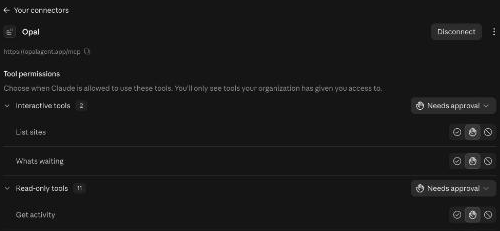
If Add custom connector is grayed out
If the button is grayed out and tells you to ask an organization owner, your Claude account belongs to a team or company. Ask an owner of that organization to add me for your team, and send them this address:
https://opalagent.app/mcpOnce they have, open Settings, then Connectors again, and connect Opal from there. Then follow steps 4 and 5 above.
Using Claude in a terminal?
Claude Code is Claude in your terminal. Run this once:
claude mcp add --transport http opal https://opalagent.app/mcpThen, inside Claude Code, type /mcp, choose opal, and sign in. You see the same page from me, and the same Allow button.
The page opens in your browser on this computer, and the address I send you back to starts with 127.0.0.1, localhost or [::1] followed by a number, which is Claude Code on this same computer.
To remove it later, run claude mcp remove opal.
The page you will see
Partway through, you land on a page from me called Connect an assistant. It names the assistant that is asking, which is Claude, and it lists what it will be able to see.
Under the name is the address I will send you back to, in bold. Check it. For Claude it should say claude.ai or claude.com. If it says anything else, press Cancel. If you connect from a terminal, see Using Claude in a terminal, above.
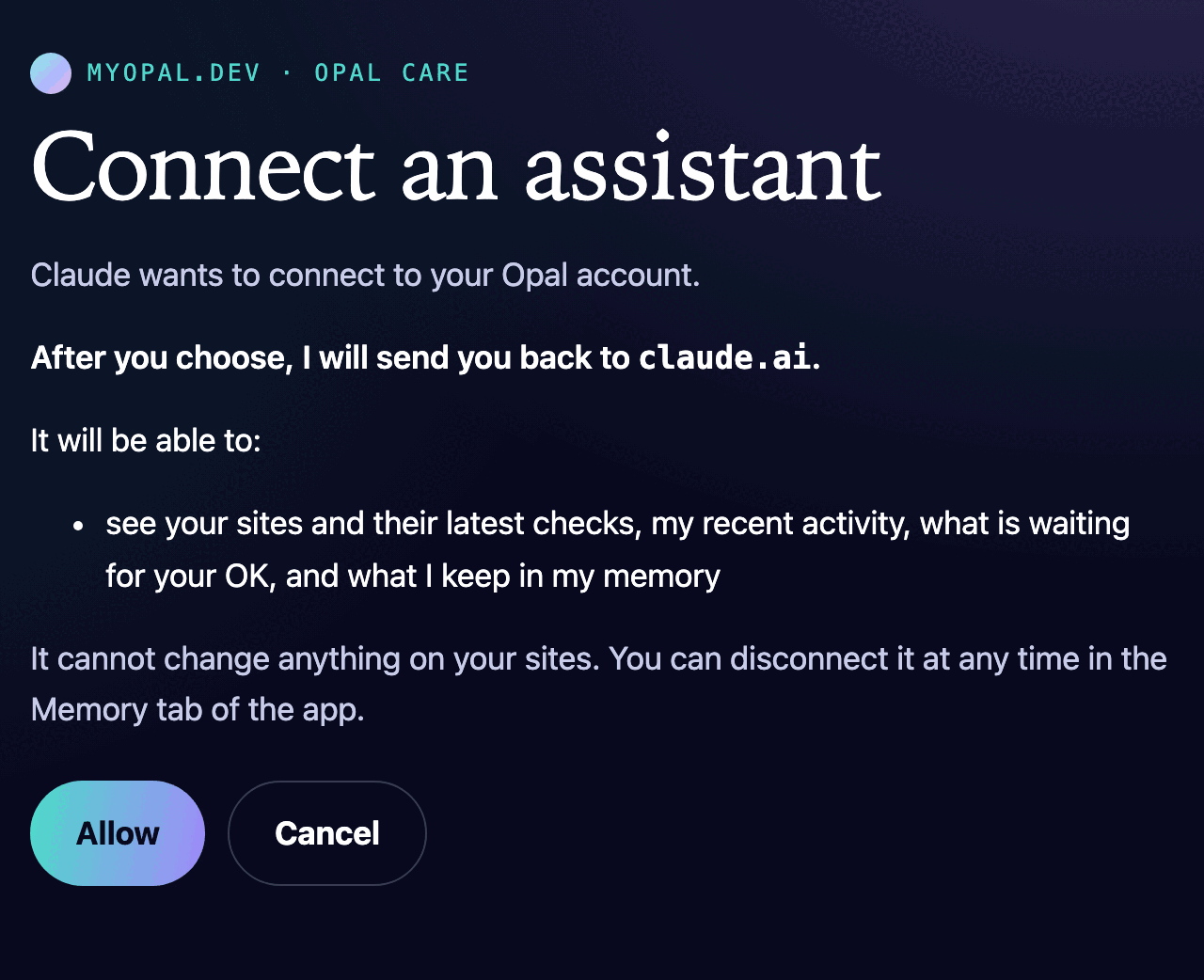
If it looks right, press Allow. You can press Cancel any time, and nothing is connected.
What I can do once you are connected
You can ask in your own words. What the assistant can do depends on what you allow on the page below: looking, talking with me, and acting for you.
Looking
- Your sites. The sites I look after for you, with the latest result of every check, and the search terms close to page one.
- What I have been doing. The checks I ran and the changes I proposed, newest first, and which of them went live or were undone.
- What is waiting on you. The plans I have proposed that need your OK, and the changes that are ready for you to approve, with a link to preview each one.
- Your projects, ideas, brand and forms. Where each project stands, your ideas and their steps, your brand kit, and your forms with how many entries each holds.
- What I remember about you, and the assistants you have connected.
Talking with me. Anything you would say to me in the app's chat, and our chat so far. As in the app, when you ask, I can open pull requests on your sites, send you email and start a project. It counts against your AI allowance, as the app does.
Acting for you, when you ask it to: approve, decline or choose a plan, approve or undo a change, start a project and decide its proposal, style, review rounds and launch, read and change a site's content plan, read its latest site review, pause, resume or drop an idea, and correct or forget something I remember.
Try asking, "Is anything waiting on me?", "How are my sites doing this week?" or "Approve the plan for the services page."
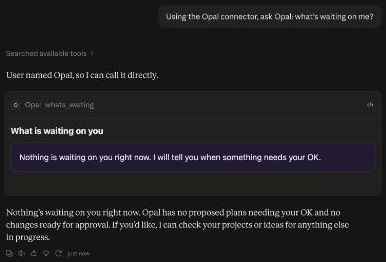
Talking and acting only do what you can do in the Opal app, with the same checks, and the assistant is told to ask you before it talks to Opal for you, or approves, undoes, declines, drops or corrects anything. It cannot pay for anything or change your plan. If you allow only looking, it cannot change anything at all.
How to disconnect
You can stop it whenever you like, and it stops at once.
- Open the Opal app and go to the Memory tab.
- Scroll down to Connected assistants.
- Find the assistant and press Revoke, then tap again to be sure.
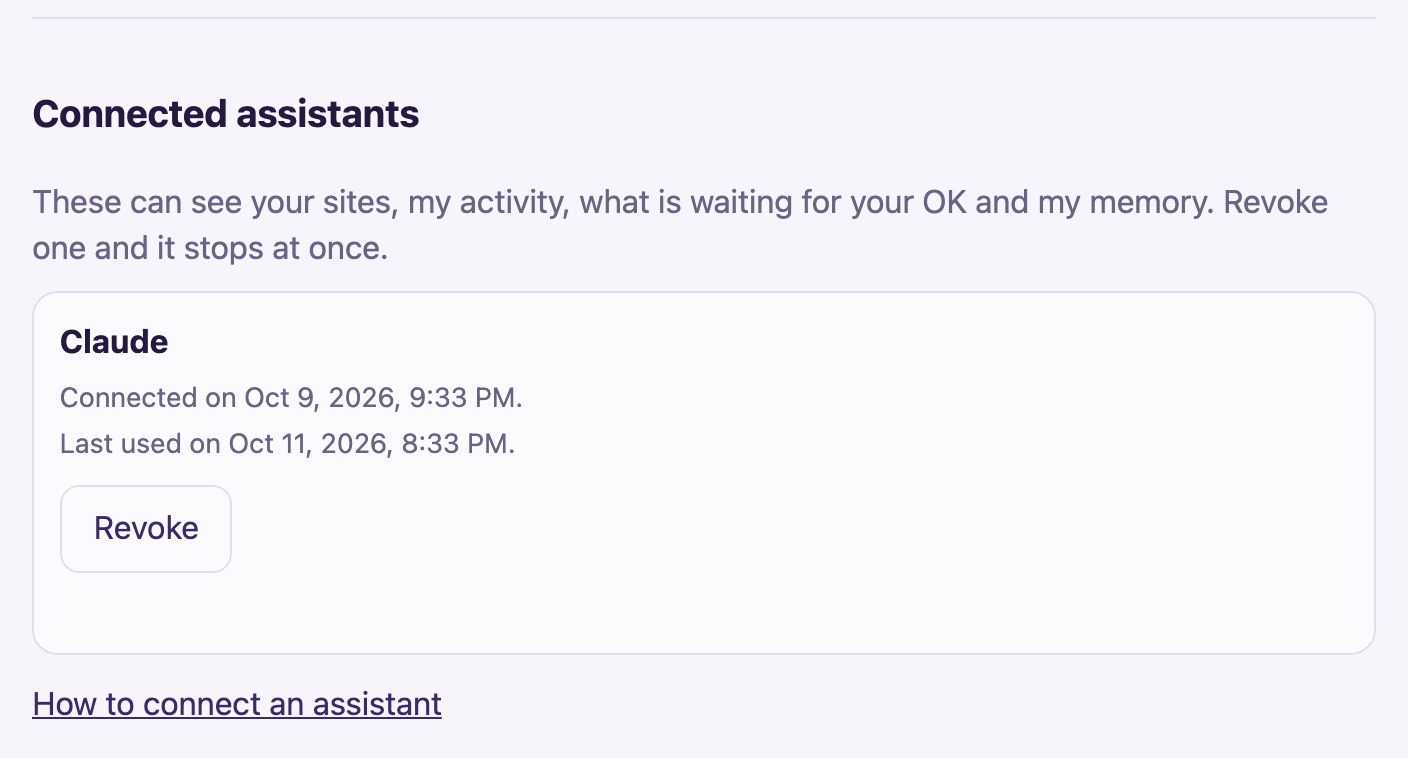
You can also turn it off on Claude's side. In Claude.ai or Claude Desktop, open Settings, then Connectors, and remove Opal. Revoking in my app is the one that stops it for certain.
Back to the Opal app.